Free AI Date & Time Stamp Remover

Remove Date and Time from Video — Free AI Tool, No Crop

Upload your video

Drag & drop a file here, or click to browse

Videos are processed securely and never shared

MP4, MOV, AVI, MKV, WebM · Up to 2GB

See the difference

BeforeVideo with camera date stamp and timestamp overlay before AI removal - UnmarkAI
AfterClean video after AI timestamp removal, background fully restored - UnmarkAI

Camera date and time stamps, CCTV time overlays, surveillance timecodes, dashcam timestamps, and burned-in date imprints can be removed from videos you own or are authorized to edit. AI inpainting erases the timestamp region and reconstructs the original background — no cropping, no blur, no quality loss. Covers GoPro date overlays, Hikvision and Dahua security camera timestamps, dashcam time codes, and old camcorder date stamps from Sony Handycam, Canon Vixia, and similar models.

UnmarkAI uses AI inpainting to erase date and time overlays and reconstruct the original footage pixel by pixel — upload, select the timestamp region, preview, and download clean results.

What is a burned-in video timestamp?

A burned-in video timestamp is visible date or time text rendered directly into each frame, often by a camera, CCTV system, DVR, dashcam, camcorder, or professional timecode workflow. It is different from file metadata because it cannot be switched off in a player. To clean it, AI must erase the visible text pixels and reconstruct the background behind them.
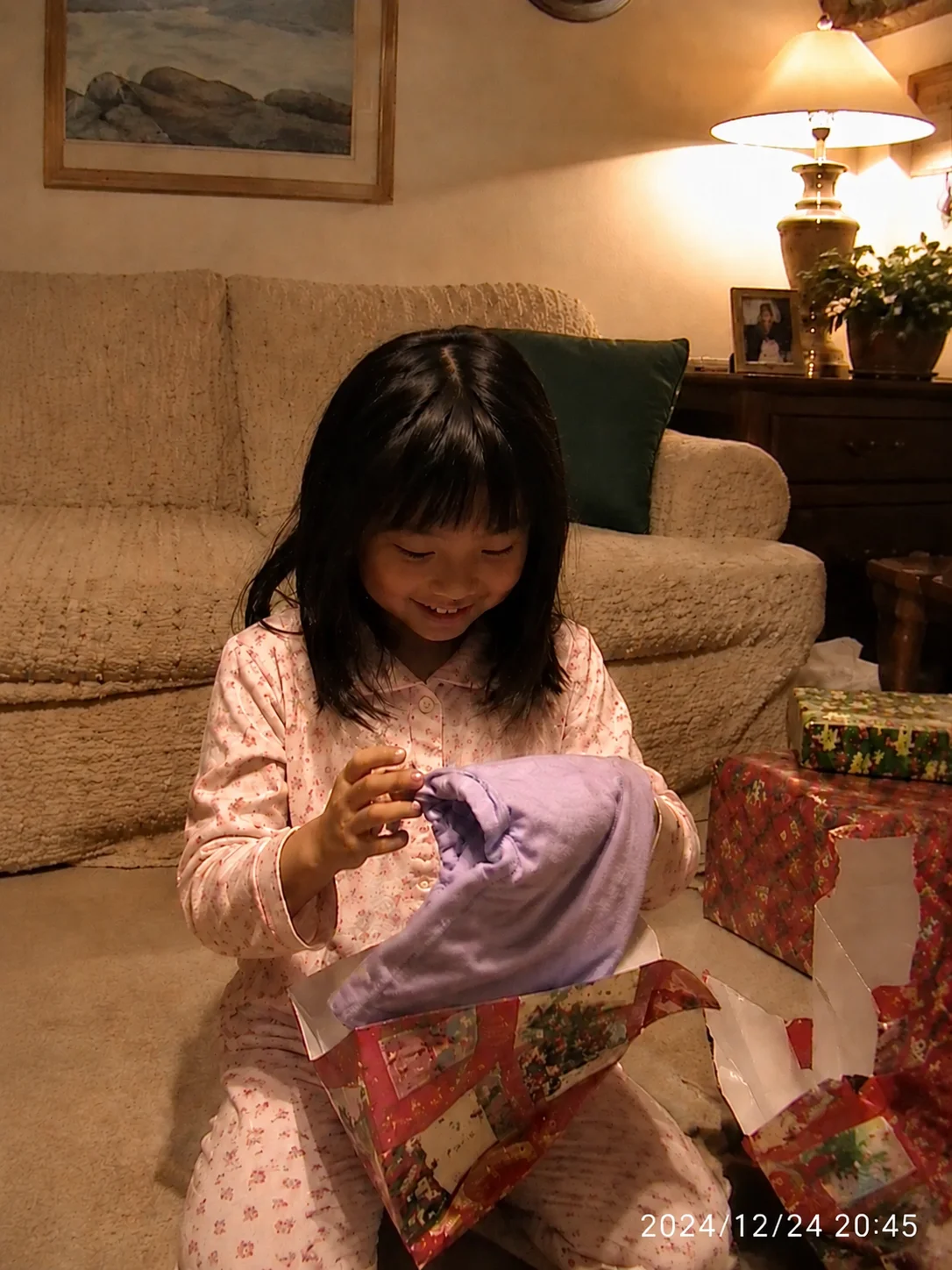

Can AI remove CCTV, dashcam, or camera date stamps without blur?

Yes, for footage you own or are authorized to edit, AI can remove fixed CCTV overlays, dashcam date and speed stamps, camera date imprints, and timecode burn-ins without cropping the frame or covering the area with blur. The best results come from stable timestamp positions, tight selections, and high-quality source video.

What is a video date and time overlay?

A video date and time overlay — also called a date stamp, time watermark, or timecode burn-in — is a text overlay that displays the recording date and time directly on the video frame. It is generated by the camera or recording device and burned into the visible pixels of each frame. Common sources include digital cameras (GoPro, Sony Handycam, Canon Vixia), security systems (Hikvision, Dahua NVR/DVR), dashcams, and older camcorders. Unlike metadata timestamps stored in the file header (which can be changed without affecting the image), a burned-in timestamp is part of the visible picture and requires AI inpainting or manual editing to remove.

Camera Date Stamps

Visible date overlays from GoPro, Sony, Canon, Nikon, and other camera exports.

CCTV and DVR Overlays

Hikvision, Dahua, NVR, DVR, and generic security camera text with date, time, or channel labels.

Dashcam Timestamps

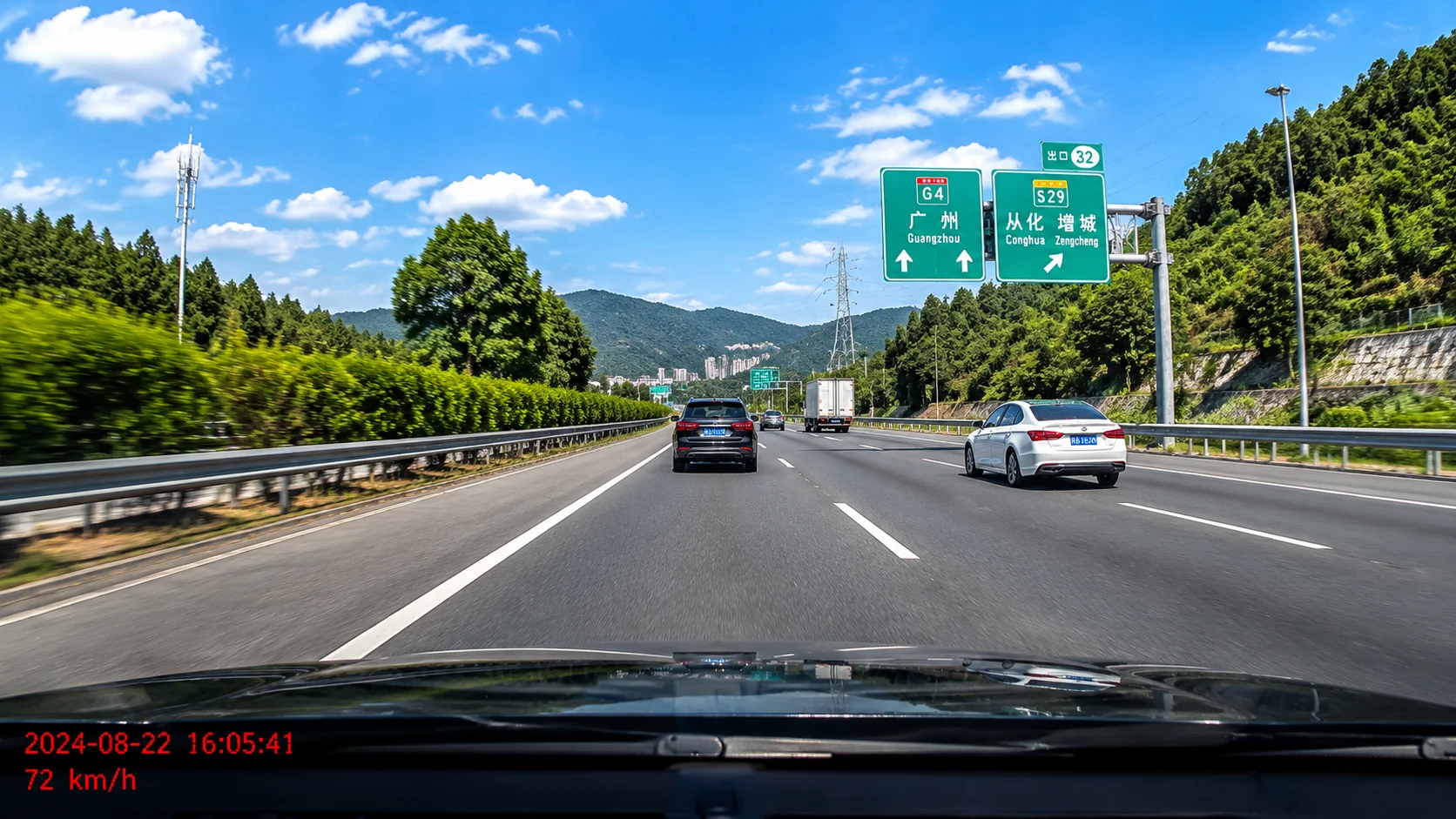
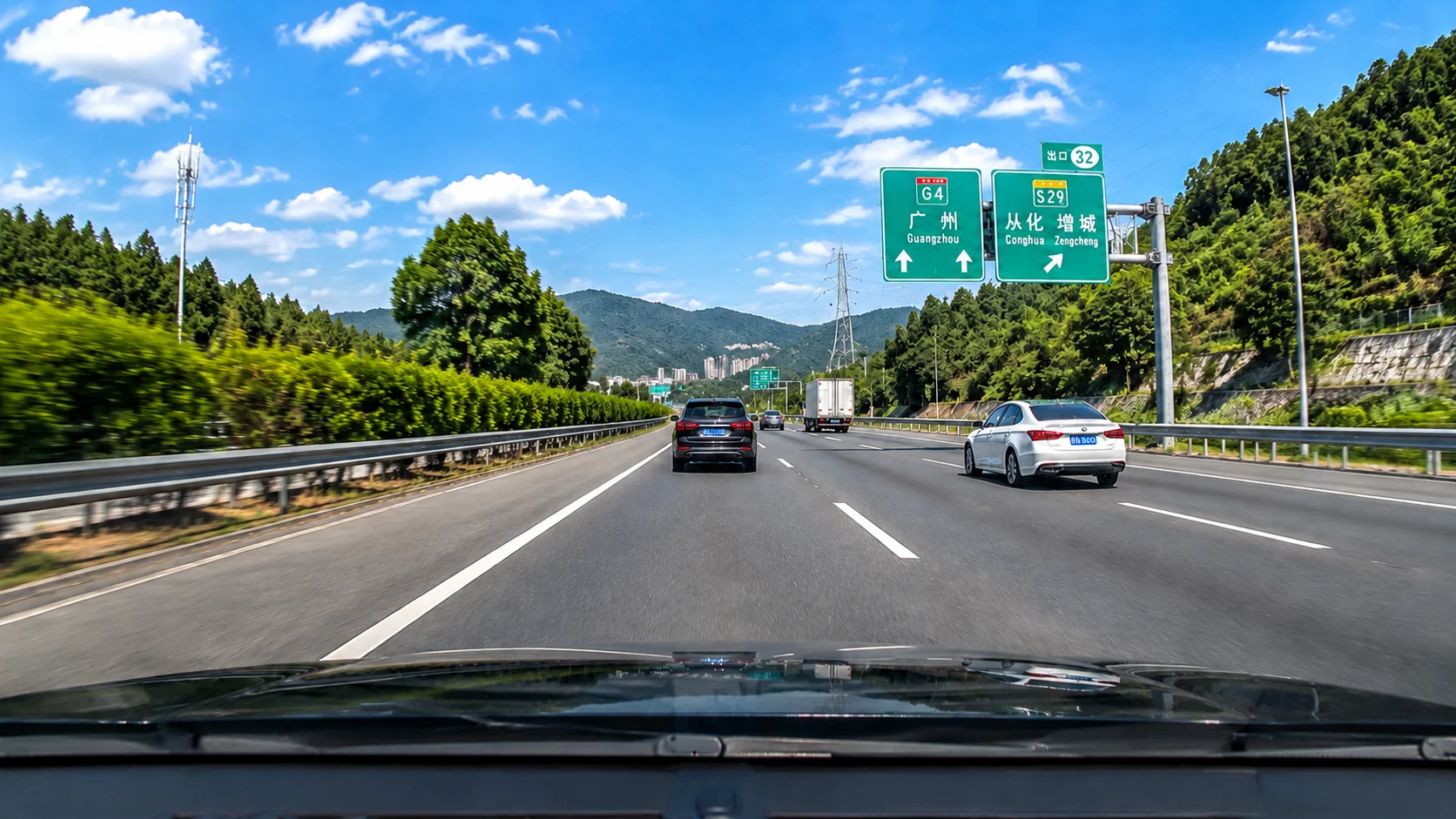
Date, time, speed, GPS-style, and driving data overlays burned into dashboard recordings.

Old Camcorder Imprints

VHS, Hi8, MiniDV, and early digital camcorder date marks that became part of the frame.

Professional Timecode Burn-In

Visible timecode used in review copies, production workflows, or archival footage.

Step-by-step: how to remove date and time from video online free

Keep the workflow simple: upload, guide the cleanup area, preview the result, then download the cleaned export.

01

Upload your video

Upload footage with camera date stamps, CCTV time overlays, DVR timestamps, dashcam time codes, or old camcorder date imprints. Supported formats: MP4, MOV, AVI, WebM. Use the highest-quality source file for best results.

02

Select the timestamp region

Draw a tight box around the area where the timestamp, date code, or time watermark appears. The AI maps this region across every frame to ensure consistent removal throughout the entire clip.

03

AI removes the timestamp and restores the background

AI inpainting erases the time/date overlay and reconstructs the original footage behind it using surrounding pixels. Preview the result side-by-side, then download the clean export at original resolution.

Camera date stamp removal results

AI inpainting detects the timestamp region and reconstructs the hidden background pixel by pixel. The result looks like the date stamp was never there — no blur patch, no crop.

  • No blur or smudgeAI reconstructs the background behind the timestamp using surrounding texture and detail.
  • Full frame preservedNo cropping needed — the entire video frame stays intact at original resolution.
  • Works across camera typesHandles GoPro, camcorder, dashcam, and action camera date stamps in various font styles.
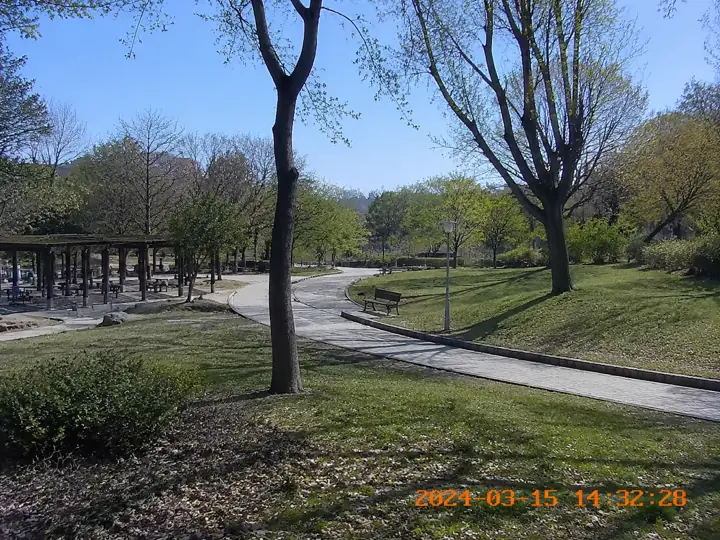
BeforeCamcorder date stamp - before
AfterCamcorder date stamp - after
Ready for a cleaner clip?AI-powered, no blur, no quality drop.
Start free

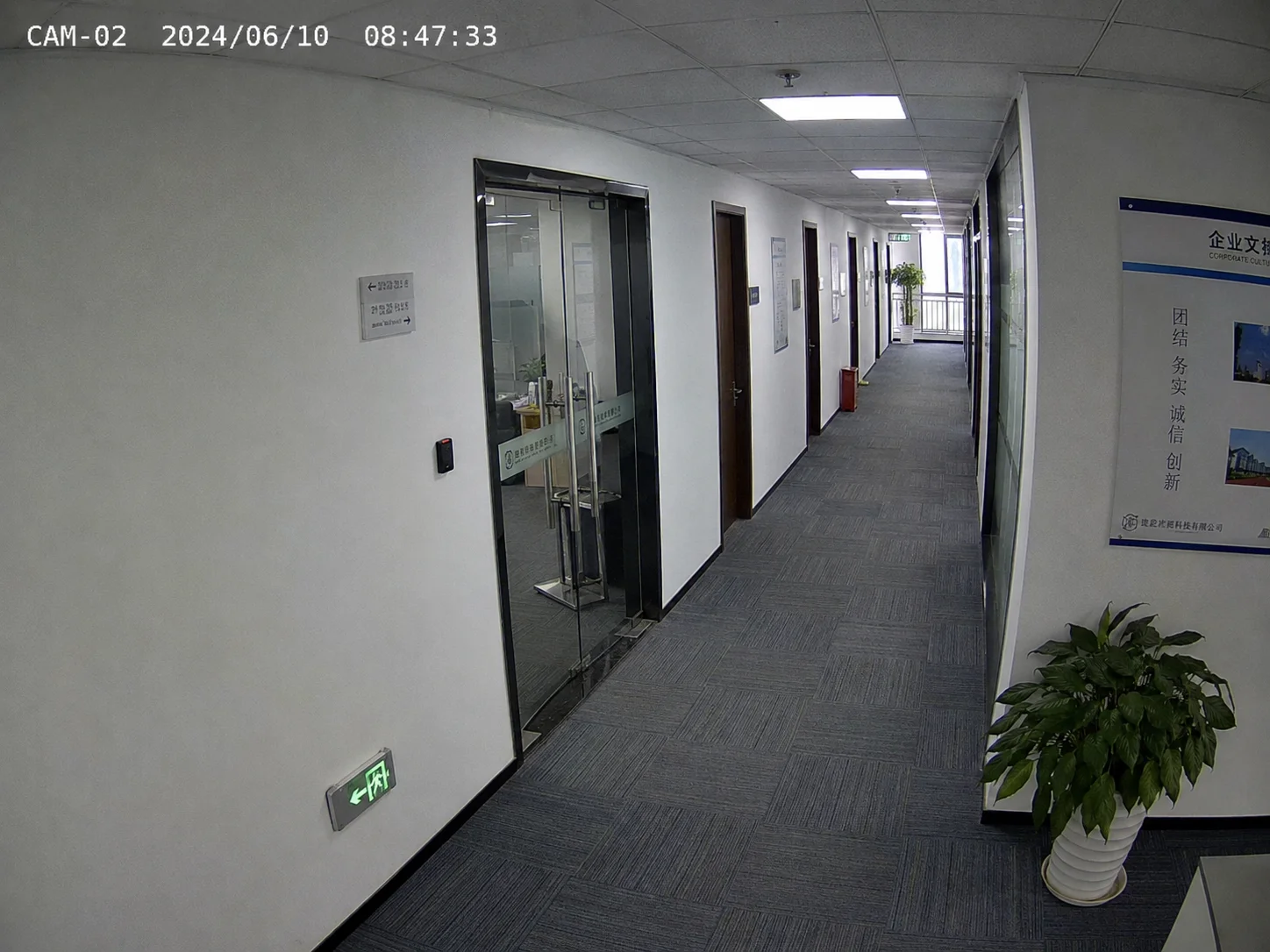
CCTV timestamp

Remove surveillance camera time overlays.

BeforeCCTV timestamp - before
AfterCCTV timestamp - after

CCTV, DVR, and surveillance time overlay removal

Security cameras from Hikvision, Dahua, and similar systems burn a timestamp overlay directly into recorded footage. AI can remove these time watermarks and restore the underlying scene.

  • Security camera timestampsRemove CAM channel names, dates, and time codes from CCTV footage you own.
  • Dashcam time codesErase date, time, and speed overlays from dashboard camera recordings.
  • Old camcorder imprintsClean up date stamps from VHS, Hi8, and early digital camcorder footage.
Ready for a cleaner clip?AI-powered, no blur, no quality drop.
Start free

Authorized use only

Timestamp removal is legitimate when you are cleaning your own footage, a licensed asset, or an approved recording. It is not intended for altering third-party evidence or misrepresenting recording dates.

  • Your own recordingsVideos you recorded yourself — home movies, personal dashcam clips, personal security footage.
  • Licensed or purchased stockStock footage with a valid license that allows derivative edits and final export cleanup.
  • Client-approved editsFinal edits where the client or rights holder approved the cleanup scope before publishing.
  • Internal and archival useTraining videos, demos, and archival footage prepared for your own organization.
Ready for a cleaner clip?AI-powered, no blur, no quality drop.
Start free

Dashcam timestamp

Erase dashcam date and speed overlays.

BeforeDashcam timestamp - before
AfterDashcam timestamp - after

Supported video formats and timestamp types

UnmarkAI processes MP4, MOV, AVI, and WebM source files. It handles a wide range of timestamp formats burned into the video frame, regardless of the camera brand or overlay style.

Common Upload Formats

MP4, MOV, AVI, and WebM files are supported for timestamp cleanup in the browser.

Many Date Formats

AI can target MM/DD/YYYY, DD-MM-YYYY, YYYY/MM/DD, and similar burned-in date layouts.

12-Hour and 24-Hour Time

Remove visible AM/PM timestamps, 24-hour time codes, and combined date-time strings.

Security Camera Labels

CCTV overlays with channel names, camera IDs, dates, and times can be selected together.

Colored Timestamp Text

White, red, orange, green, and semi-transparent date text can be cleaned from authorized clips.

High-Bitrate Sources

Sharper source files give AI more background detail to reconstruct after the timestamp is erased.

Real use cases — who needs to remove timestamps from video

Timestamp removal is useful across many legitimate scenarios. Content creators cleaning old family footage for archival, real estate teams removing timestamps from property walkthrough videos, legal and compliance teams redacting timestamps from evidence footage they own, archivists digitizing old tape collections, and dashcam owners cleaning clips before sharing on social media.

Family and Archive Restoration

Clean old home videos or digitized tapes before sharing or preserving an authorized archive.

Real Estate Walkthroughs

Prepare cleaner property videos when a camera date stamp was accidentally burned into the footage.

Compliance Review Copies

Create authorized working copies for legal, compliance, or internal review workflows.

Dashcam Sharing

Remove visible date, time, or speed overlays from your own dashcam clips before posting.

Security Team Exports

Produce clean copies of surveillance footage only when your team has the right to edit them.

Is it legal to remove timestamps from video?

Removing timestamps from videos you own, license, or are authorized to edit is a legitimate editing operation. However, you should not remove timestamps from third-party footage to misrepresent when a recording was made. If the footage is evidence, legal, or official documentation, consult the relevant authority before making edits.

Your Own Recordings

Personal videos, home movies, dashcam clips, and organization-owned recordings can be edited when you control the rights.

Licensed Footage

Stock or purchased footage is appropriate only when the license permits derivative edits and cleanup.

Written Approval

For client or third-party recordings, confirm the timestamp removal scope before processing.

No Date Misrepresentation

Do not remove timestamps to conceal when a recording happened or to change its context.

Evidence Needs Review

For legal, official, or evidentiary footage, consult the relevant authority before editing.

Why AI date and time removal beats cropping and blurring

Cropping cuts away usable frame area and changes the composition. Blurring leaves a visible patch where the timestamp used to be. AI inpainting reconstructs the hidden background so the result looks natural — no lost pixels, no visible edit marks.

MethodQualitySpeedComposition
AI inpainting (UnmarkAI)Reconstructs backgroundAutomated, minutesFull frame preserved
CroppingNo quality loss in kept areaInstantFrame area lost
Blurring / mosaicVisible blur patchInstantDistracting artifact
Manual masking (Premiere, Resolve)High with effortHours per clipDepends on skill

Full Frame Preserved

AI targets the timestamp area instead of cutting away a corner, lower edge, or camera overlay band.

Cleaner Than Blur

Inpainting reconstructs the hidden background rather than leaving a visible blur or mosaic patch.

Works on Textured Motion

Stable timestamp overlays can be cleaned across pavement, walls, interiors, sky, and light motion.

Ideal for Fixed Timecodes

Date stamps, CCTV time codes, and dashcam overlays work best when they stay in one region.

Faster Than Manual Masking

AI cleanup is more practical than clone-stamping or masking every frame for delivery copies.

Trust

Built for authorized video cleanup

UnmarkAI is designed for creators and teams working with content they own, license, or have permission to edit. The product copy, terms, and upload flow all reinforce that boundary.

Rights-aware workflow

Designed to help you clean videos you own, license, or are explicitly authorized to edit.

Preview before download

Check the AI reconstruction frame-by-frame before exporting the final clean video.

Secure processing

Your uploads and exports are processed securely and never shared with third parties.

Clear acceptable use policy

Strict guidelines against removing attributions from unauthorized third-party content.

Frequently asked questions

Practical answers for safe, high-quality cleanup workflows.

How do I remove the date and time from a video?

Upload your video to UnmarkAI, draw a box around the date and time stamp area, and the AI will erase the overlay and reconstruct the background behind it. The process works on camera date stamps, camcorder time imprints, CCTV overlays, and dashcam time codes — no cropping or blurring required.

Can I remove a timestamp from a video without cropping?

Yes. UnmarkAI uses AI inpainting to erase the timestamp and reconstruct the background behind it, so the full frame is preserved without any cropping.

What types of timestamps can AI remove from video?

AI can remove camera date stamps (GoPro, Sony, Canon), CCTV time overlays (Hikvision, Dahua), dashcam timestamps with speed data, old camcorder date imprints, and professional timecode burn-ins — as long as the overlay is burned into the visible frame.

Can I remove the timestamp from a CCTV or security camera recording?

Yes. If you own or are authorized to edit the CCTV footage, UnmarkAI can remove the time overlay, channel name, and date stamp. Upload the recording, select the overlay region, and process.

What is the difference between a burned-in timestamp and a metadata timestamp?

A burned-in timestamp is rendered as visible text on each video frame — it becomes part of the image pixels. A metadata timestamp is stored in the file header and can be changed without affecting the video image. UnmarkAI handles burned-in timestamps only.

Can I remove the date stamp from old camcorder footage?

Yes. Old camcorders from Sony, Canon, JVC, and similar brands burned date stamps directly onto the recorded frames. Upload the digitized footage and select the date stamp area for AI removal.

Ready to clean your videos?

Join thousands of creators who use UnmarkAI to deliver distraction-free content.

Start for Free Now

Get 10 credits on sign up · No credit card required